Apple Watch guide
How to change map style on Apple Watch
LilyMaps offers multiple styles, each optimized for readability.
A map style changes the colors and contrast of your map. It does not change your downloaded maps, route, or location. Try any of the five options and keep the one that is easiest for you to read at a glance.
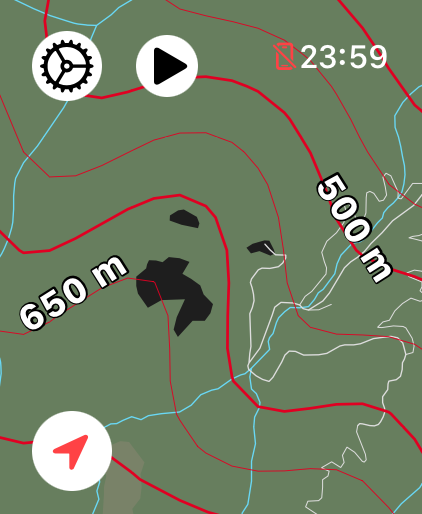
- Lily Classic: best as an everyday or daylight starting point. Its light base, dark roads, and orange terrain details are familiar and easy to scan.
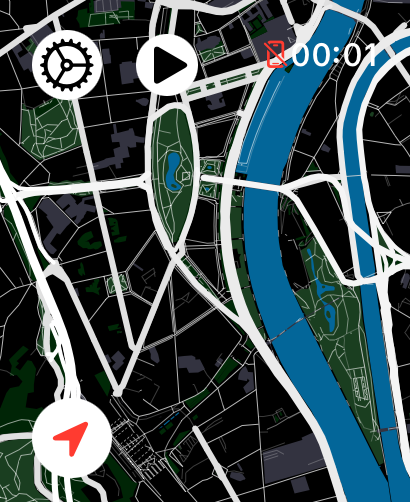
- Lily Carto: best when you want map features clearly separated. Its darker base and varied colors distinguish roads, water, and landscape, though it can look busier.
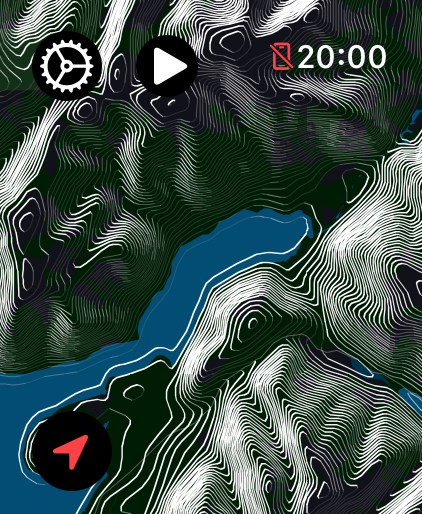
- Lily Sport: best for quick glances while walking, running, or cycling. Its dark base and bright lines give roads and paths strong contrast.
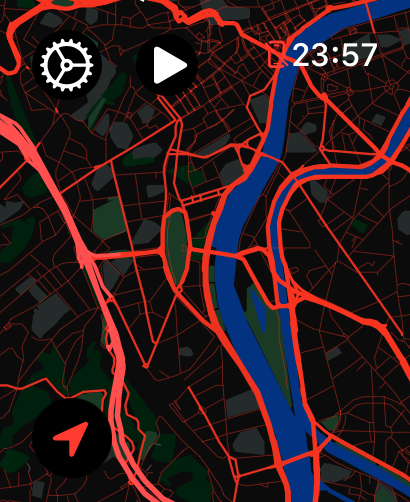
- Lily Dark Red: best in dim surroundings when bright white lines feel harsh. Its black base, red roads, and green highlights create strong color contrast.
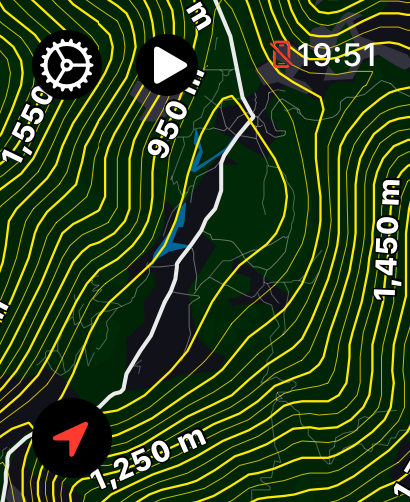
- Lily Dark White: best as a clean, all-purpose dark option. White roads and yellow terrain details stay crisp, but appear brighter than Lily Dark Red at night.
Before you start
- Install LilyMaps on your Apple Watch.Install LilyMapsInstall LilyMaps BerlinMore information
1 Open the LilyMaps menu
From the LilyMaps map, tap the gear icon in the upper-left corner.

2 Open Setting
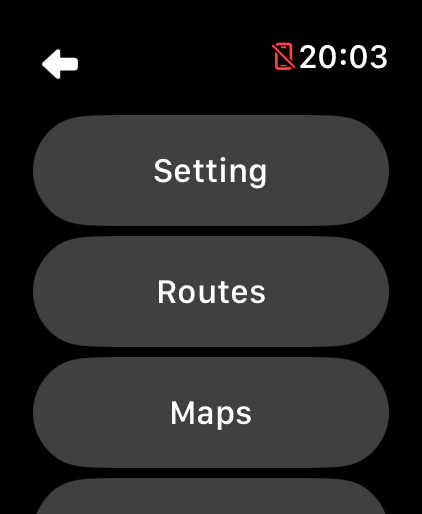
In the LilyMaps menu, tap Setting.
3 Open Style
In Setting, tap Style.
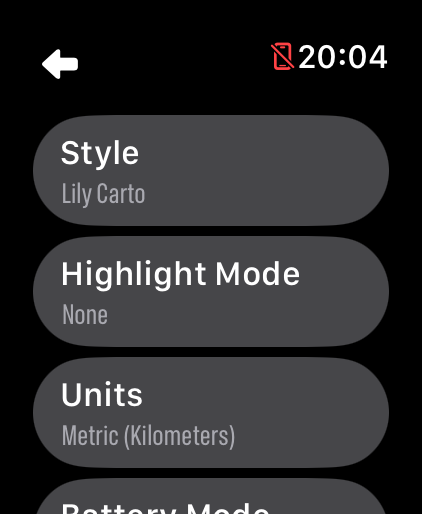
4 Choose a map style
Tap the style you want to use. Your map changes straight away.
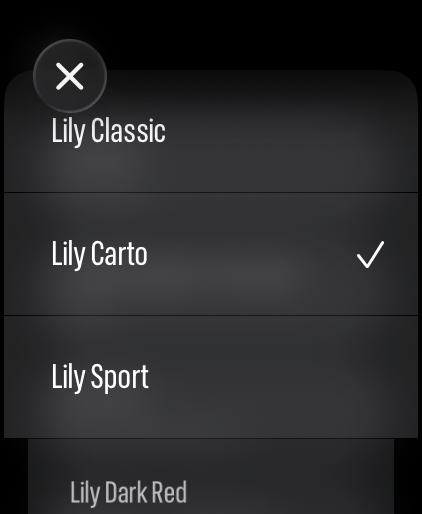
Your choice is saved for the next time you open LilyMaps. No single style is best everywhere: switch styles to separate city roads, spot paths quickly, read contour lines, or compare shaded terrain more clearly.
Lily Classic: best as an everyday or daylight starting point. Its light base, dark roads, and orange terrain details are familiar and easy to scan.
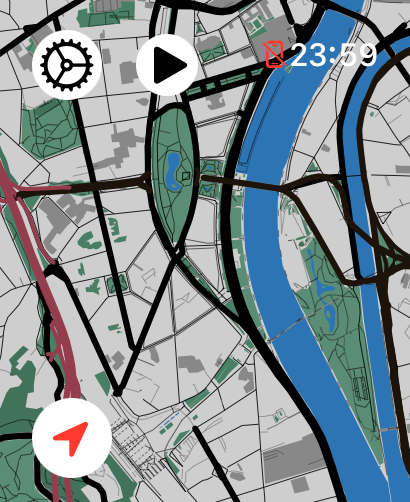

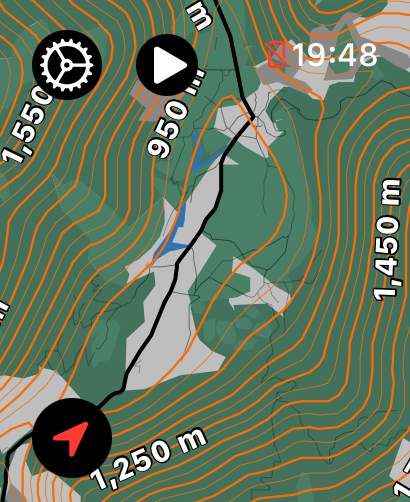
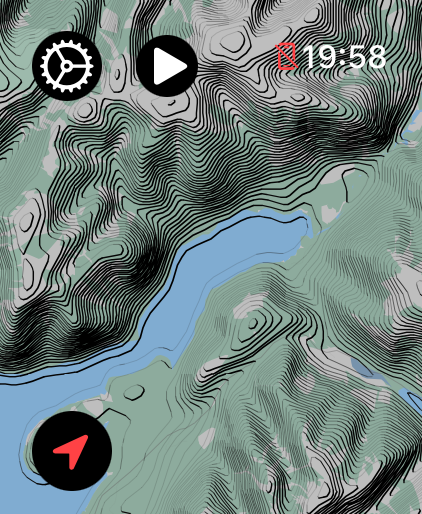
Lily Carto: best when you want map features clearly separated. Its darker base and varied colors distinguish roads, water, and landscape, though it can look busier.


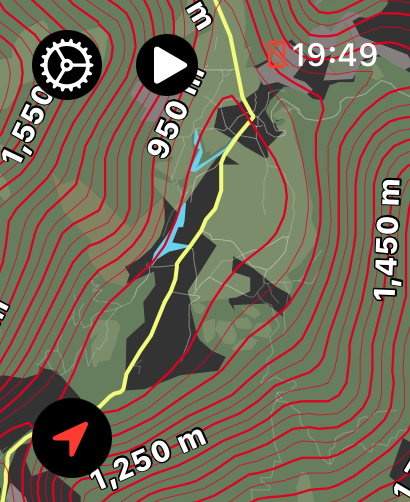
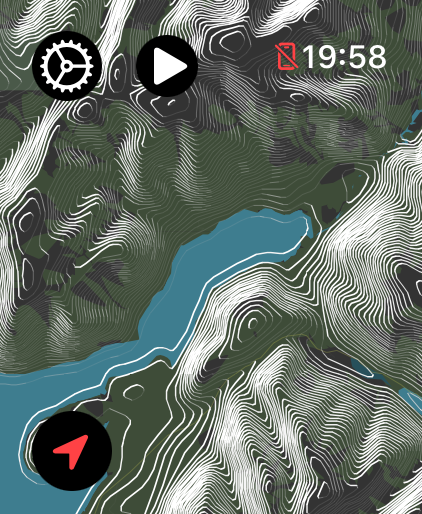
Lily Sport: best for quick glances while walking, running, or cycling. Its dark base and bright lines give roads and paths strong contrast.
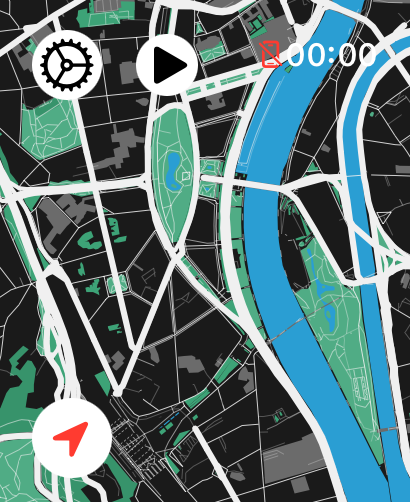

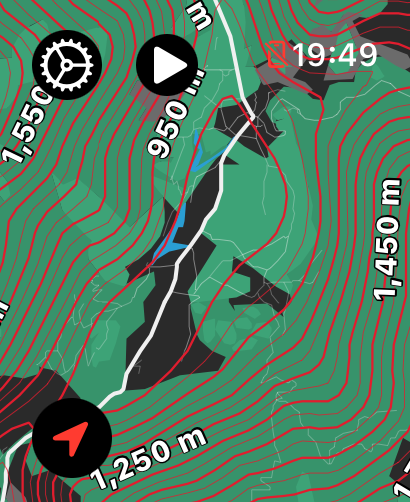
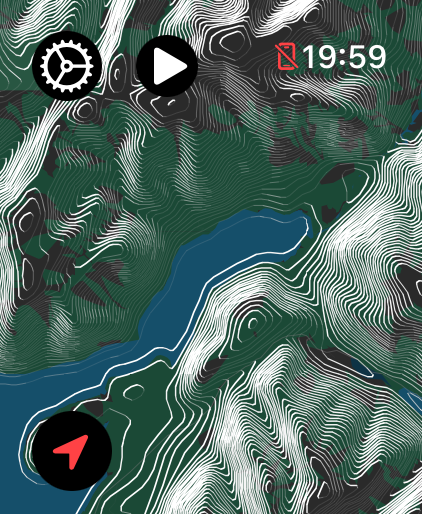
Lily Dark Red: best in dim surroundings when bright white lines feel harsh. Its black base, red roads, and green highlights create strong color contrast.
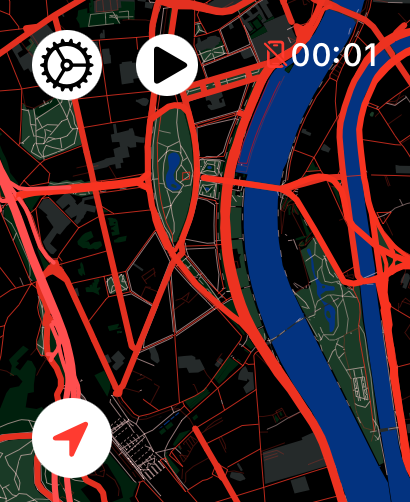

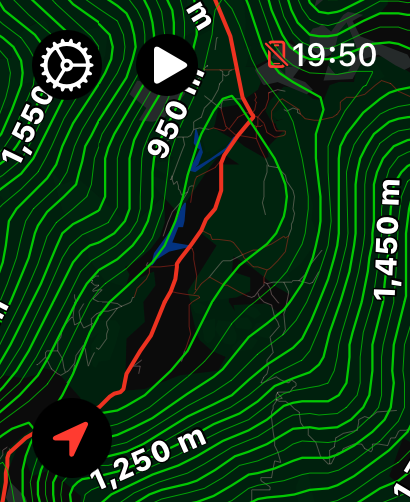
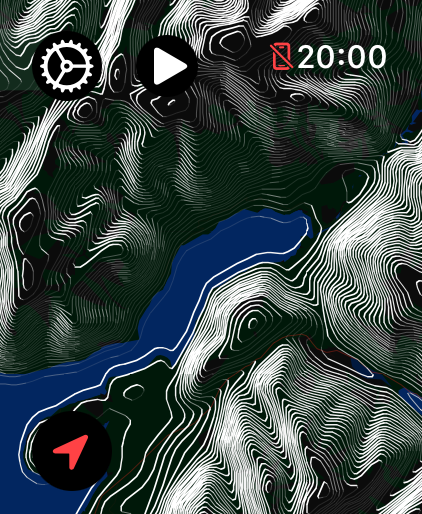
Lily Dark White: best as a clean, all-purpose dark option. White roads and yellow terrain details stay crisp, but appear brighter than Lily Dark Red at night.

What does changing the map style do?
It changes the look of the map so you can use the version that feels clearest to you. Your downloaded maps, routes, and location stay the same.
Which map style should I choose?
Start with Lily Classic for everyday use and bright surroundings. Try Lily Sport for quick glances while moving, Lily Carto when you want map features separated by color, or a dark style in dim surroundings.
Can I change the style again?
Yes. You can choose a different style whenever you like.
Do I need to restart LilyMaps after changing the style?
No. Your new style is applied straight away and LilyMaps remembers it for the next time you use the app.
Choose the look that works for you.
Start with Lily Classic, then try another style whenever you want a different look.