Apple Watch guide
How to save Apple Watch battery while using maps
LilyMaps Battery Modes help you balance smooth map movement with Apple Watch battery use.
Battery Mode changes how smoothly the map moves and how much power LilyMaps uses. Your downloaded maps, saved routes, and location stay the same.
- Optimized: the default and the best choice for most days. It balances smooth map movement with sensible power use.
- Max Performance: use this when the smoothest possible map movement matters most. It asks more from the watch battery.
- Battery Saver: use this when you want to reduce LilyMaps power use. The map may update less smoothly, especially while you pan or zoom.
Before you start
- Install LilyMaps on your Apple Watch.Install LilyMapsInstall LilyMaps BerlinMore information
1 Open the LilyMaps menu
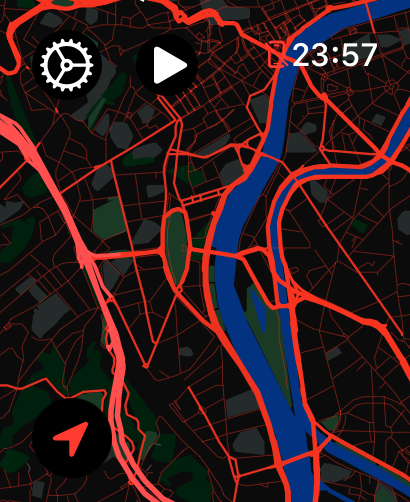
From the LilyMaps map, tap the gear icon in the upper-left corner.

2 Open Setting
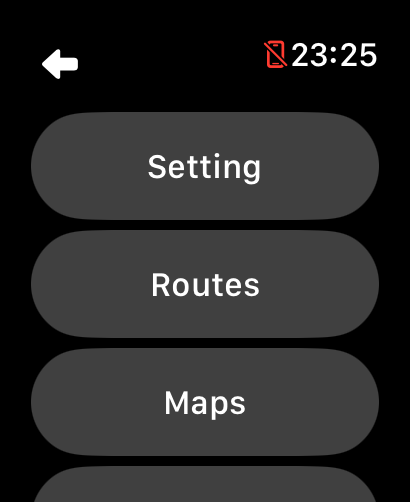
In the LilyMaps menu, tap Setting.
3 Scroll down in Setting
In Setting, scroll down until you see Battery Mode.
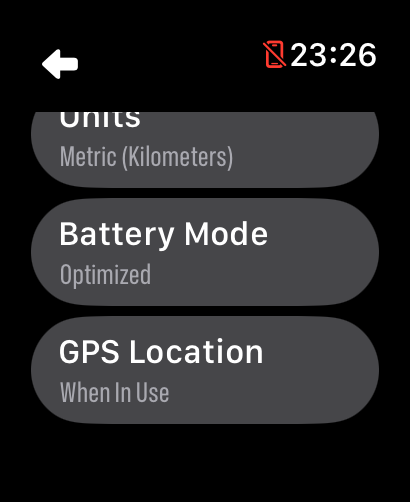
4 Choose your rendering quality
Choose Max Performance, Optimized, or Battery Saver.
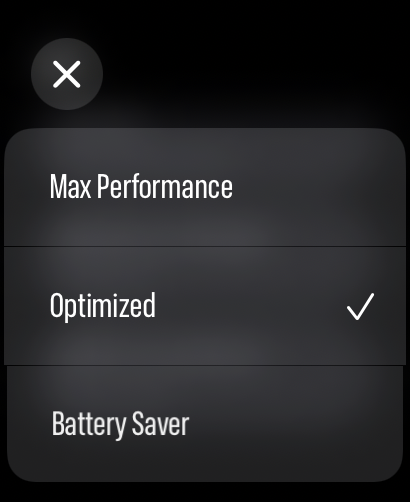
Pick the balance that suits your day
Your choice takes effect straight away and is kept for the next time you open LilyMaps.
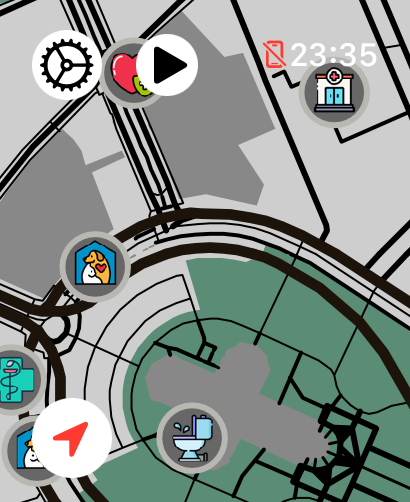
Max Performance
Quality: Maximum
Movement: Smoothest
Choose this when the most responsive map movement matters most.
Optimized
Quality: Maximum
Movement: Smooth, but less aggressive than Max Performance
The default everyday choice for maximum map quality with more sensible power use.
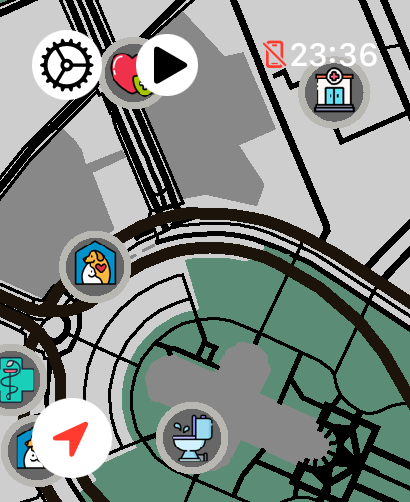
Battery Saver
Quality: Reduced
Movement: Less smooth
Uses less power with a simpler-looking map while you pan or zoom.
Try Battery Saver before a long day outdoors if you expect to check the map often and want to be more careful with power. Choose Max Performance when you are actively exploring the map and want movement to feel as responsive as possible.
For everyday navigation, Optimized is the recommended starting point. You can switch modes whenever your plans change.
Which Battery Mode should I choose?
Choose Optimized for most days. Choose Max Performance when you want the smoothest map movement, or Battery Saver when making the battery last matters more than smooth movement.
What is the default Battery Mode?
LilyMaps uses Optimized by default. It is the everyday balance between map smoothness and power use.
Will Battery Saver change my route?
No. It only changes how smoothly the map moves. Your downloaded maps and routes stay the same.
Do I need to restart LilyMaps after changing Battery Mode?
No. The change takes effect straight away. LilyMaps also remembers your choice for the next time you use the app.
Choose once. Adjust whenever you need.
Start with Optimized, then switch to Battery Saver or Max Performance whenever your day calls for a different balance.