Apple Watch guide
How to download offline maps to Apple Watch
LilyMaps lets you download a complete country or continent map to your Apple Watch, then navigate when you are away from Wi-Fi or cellular service.
LilyMaps is an offline-first map app for Apple Watch, built for hiking, cycling, travel, and everyday outdoor navigation. Download the coverage you need before you leave, then keep the map with you on your wrist.
Choose a complete country or continent map, follow the short download flow, and expect a clear map that remains available when your connection does not.
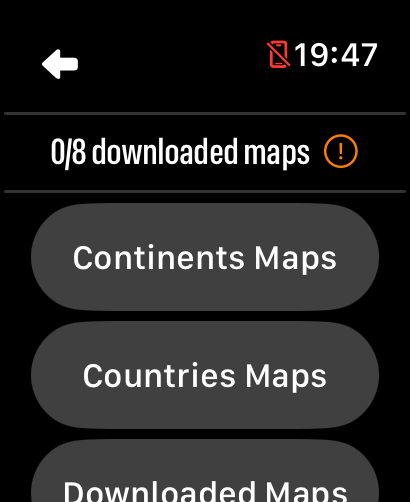
LilyMaps offers offline maps as complete map files rather than small hand-drawn areas. In the Maps menu, you can browse:
- Continents Maps: broad coverage for a whole continent.
- Countries Maps: complete coverage for an individual country.
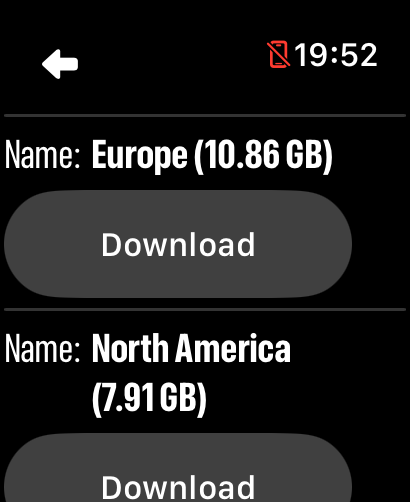
Each entry shows its name and download size before you start. Choose the coverage that fits your trip, or choose a continent when your route crosses multiple countries.
- Install LilyMaps on your Apple Watch.Install LilyMapsInstall LilyMaps BerlinMore information
- Have Wi-Fi or cellular data available for the download.
- Power is recommended for a faster, uninterrupted download.
- Make sure the watch has enough free storage.
Wi-Fi is usually the best choice for a large download, but LilyMaps can also use cellular data when it is available. The watch does not need to be connected to power, although charging can help the download finish faster.
1 Open Settings from the map
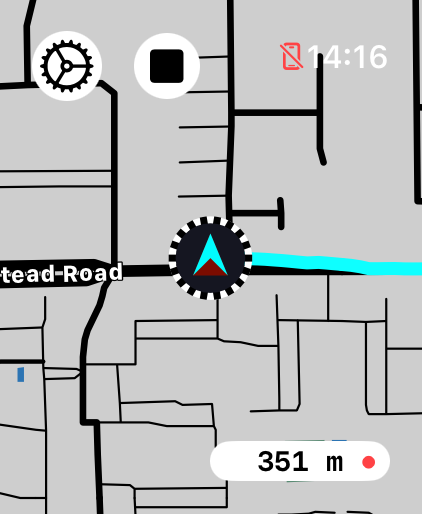
Open LilyMaps on your Apple Watch and start from the main map display. Tap the gear icon in the upper-left corner to open Settings.

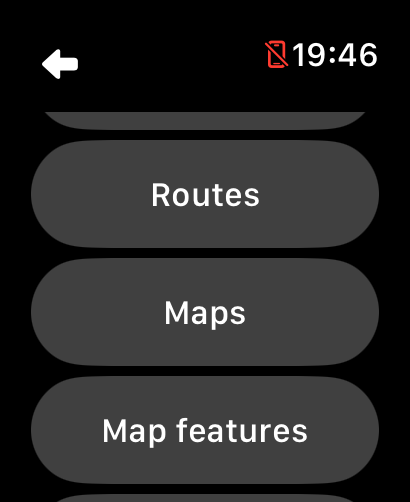
2 Open Maps
In the LilyMaps Settings menu, tap Maps. This opens the map manager.
3 Choose map coverage
Choose Continents Maps for broad coverage or Countries Maps for a complete country map.
4 Select a map
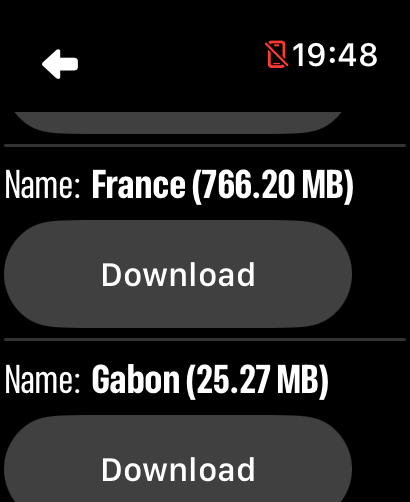
Browse the list, select the country or continent you want, and tap Download. Each entry shows its name and size. Maps already on your watch appear as Downloaded.
5 Confirm the download
Review the confirmation message, then choose Yes to start. Wi-Fi and power are recommended for a faster download, but the watch can use cellular data when available and does not require a charger.

6 Wait for the map to finish
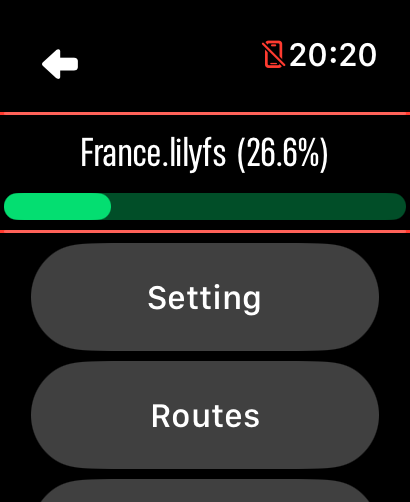
While LilyMaps downloads the map, the downloader shows the map name and progress percentage. Keep LilyMaps open until the progress reaches 100%. Power is recommended, but not required.
7 Manage downloaded maps
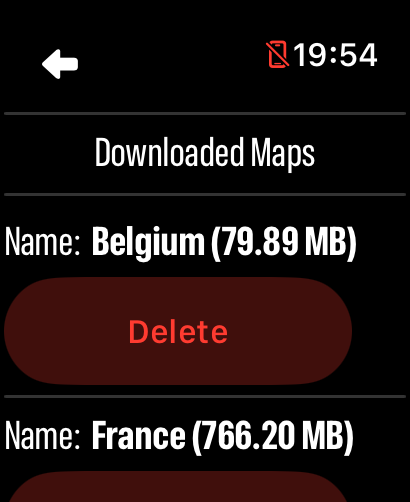
When the download reaches 100%, LilyMaps adds the map to Downloaded Maps. Open Settings → Maps → Downloaded Maps to see the maps stored on your Apple Watch.
To remove a map, choose it from the list and tap Delete, then confirm. Deleting a map frees a download slot; you can download it again later.
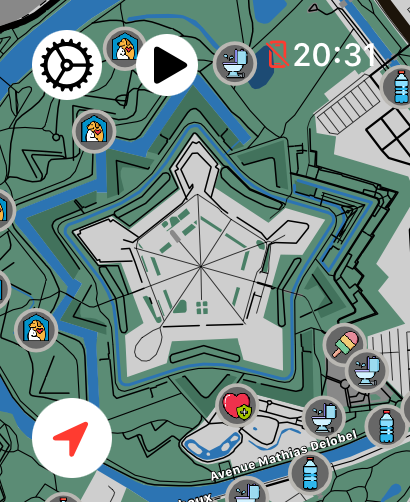
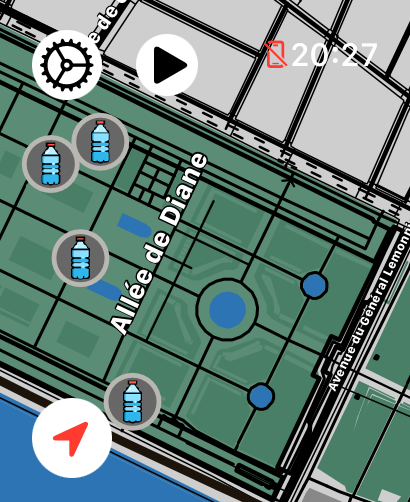
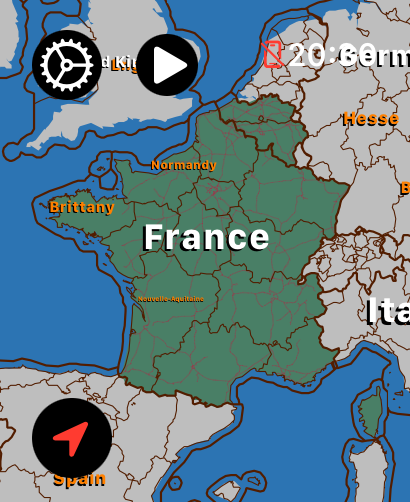
Before starting a hike, ride, or trip, turn off Wi-Fi and cellular temporarily and open the downloaded area in LilyMaps. Pan or zoom into the map to confirm that it renders from local storage.
This quick check confirms that your Apple Watch has the map you need before you are out of coverage.

Can I use LilyMaps offline after downloading a map?
Yes. A completed map is stored on the Apple Watch and can be rendered without an internet connection. Test it before your trip so you know the map is ready.
Do I need my iPhone nearby?
No. Once LilyMaps is installed, the Apple Watch can download and use maps independently.
Can I download a whole country?
Yes. Choose Countries Maps to browse complete country map files. Choose Continents Maps when you need broader coverage across multiple countries.
Can I download the whole globe?
Yes. You can download all seven continent maps to cover the globe. Together they require roughly 30 GiB of free storage, and the exact sizes can change. Check the current LilyMaps map list before downloading.
Can I download multiple maps?
Yes. LilyMaps can store up to eight maps on the Apple Watch. Downloads are handled one at a time.
What if a download is interrupted?
Reopen LilyMaps when you have a connection again. The app keeps download state so an interrupted download can continue.
Why can’t I see the map list?
Check that the Apple Watch has Wi-Fi or cellular data available, then open the Maps section again.
Can I download a map without Wi-Fi?
Yes. LilyMaps can download over cellular data when it is available. Wi-Fi is recommended for larger maps, and power can help the download complete faster.
Download once. Navigate offline.
LilyMaps is built for a standalone offline map experience on your wrist. Choose the coverage you need, finish the download at home, and verify it before you go.