Apple Watch route guide
How to import a GPX route to Apple Watch
Send a GPX file to your Apple Watch, download it in LilyMaps, and display the route on your map.
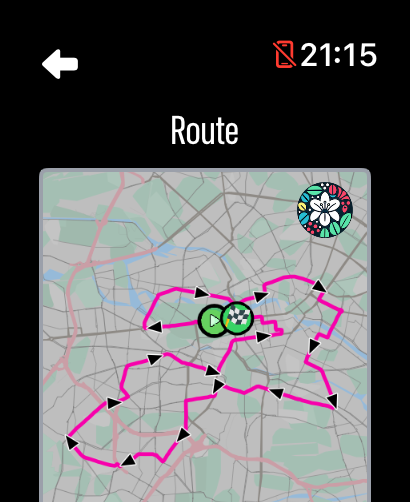
A step-by-step guide to importing and displaying GPX routes on Apple Watch with LilyMaps. Download both the map and GPX route before you leave, then follow the route offline, even without an internet connection.
Follow this guide to transfer a GPX file to your watch, download the route, and display it on the map.
Prerequisites
- Install LilyMaps on your Apple Watch.Install LilyMapsInstall LilyMaps BerlinMore information
- Have a GPX file ready to send.
- Keep the watch connected to the internet while the route downloads.
1 Open the route menu
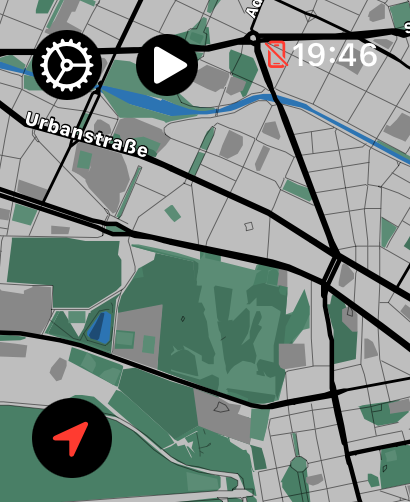
Open LilyMaps on your Apple Watch and start from the main map. Tap the gear icon in the upper-left corner.
2 Choose Routes
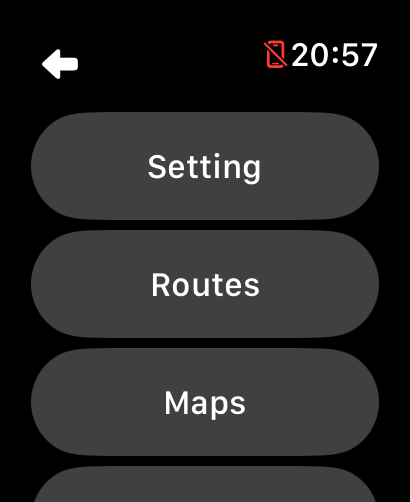
In the menu, tap Routes.
3 Import a new route
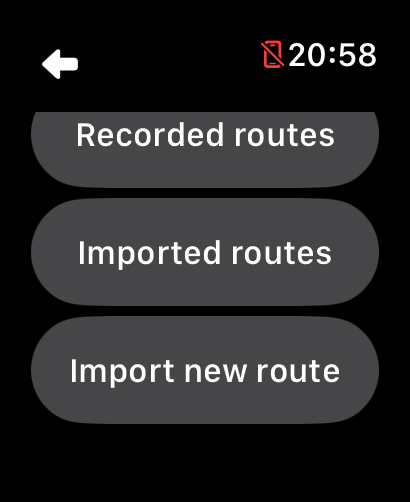
Tap Import new route to show the 16-digit code for your watch.
4 Keep the watch code visible
Leave the 16-digit code on screen while you prepare the transfer on another device.

5 Open the GPX transfer website
On another device, open gpx.lilymaps.com. Enter the code shown on the watch, choose your GPX file, then tap Send To Watch.

6 Open available routes
Return to the watch and wait for Download routes to appear. Tap it to open the available route list.

7 Choose a GPX route
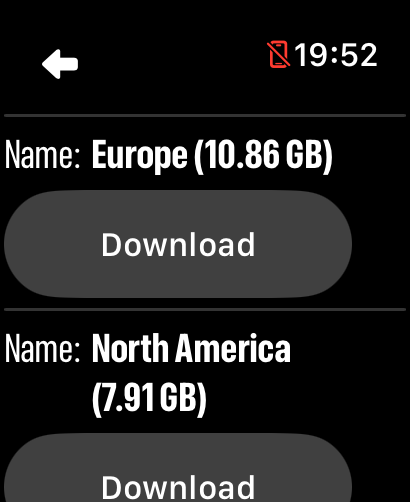
Review the route name and size, then tap Download for the route you want.

8 Wait for the download to finish
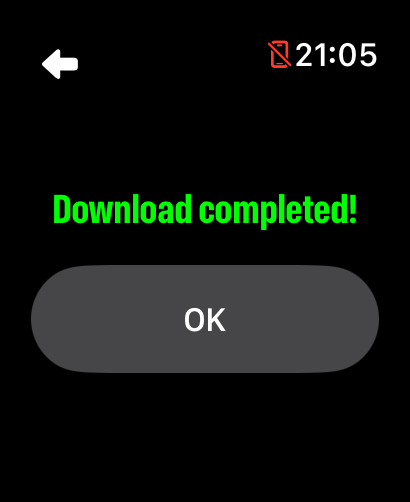
Keep the watch connected to the internet and wait for the confirmation that says Download completed!. Then tap OK.
9 Open Imported routes
After the download finishes, you return to the Routes menu. Tap Imported routes to find your downloaded route.
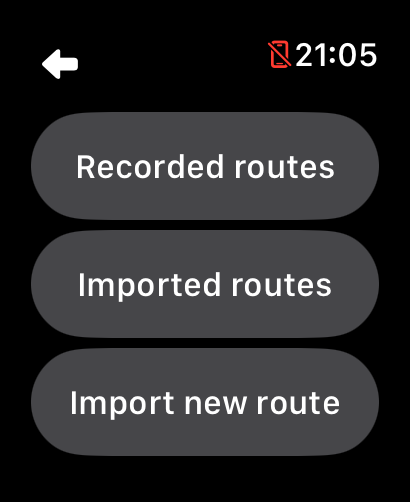
10 Locate the imported route
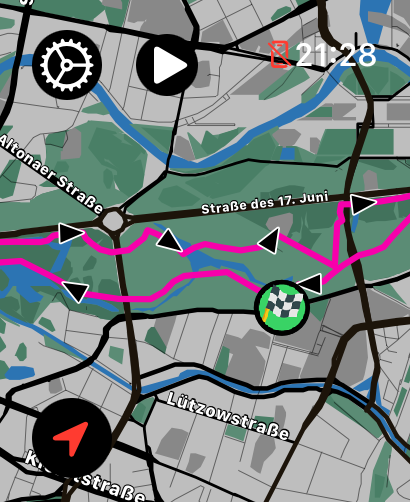
Routes are grouped by download month. Choose the month you downloaded the route, then find it by name in the list. Tap Display to open the map with the route shown.
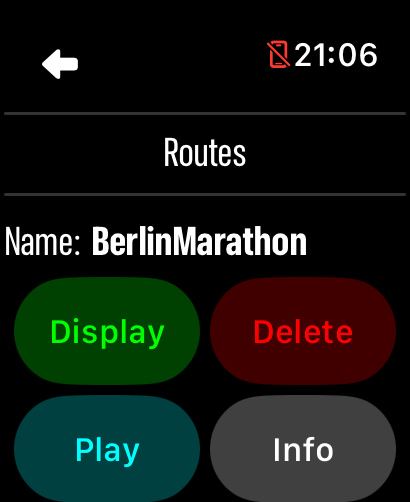
Open an imported route to access these controls:
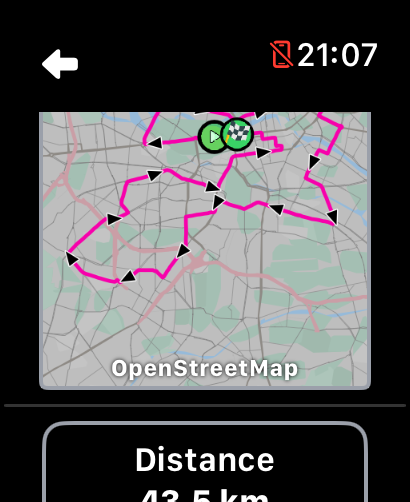
Info
Check the route summary and details before you start.
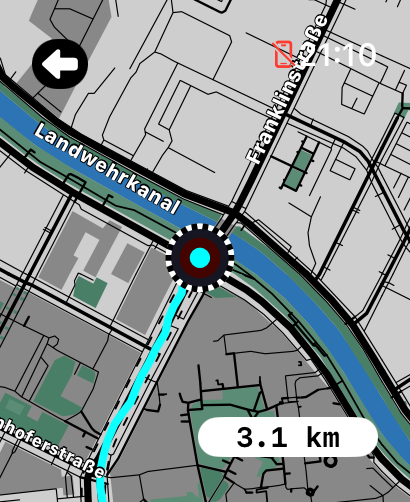
Play
Replay the route to review its path and movement.
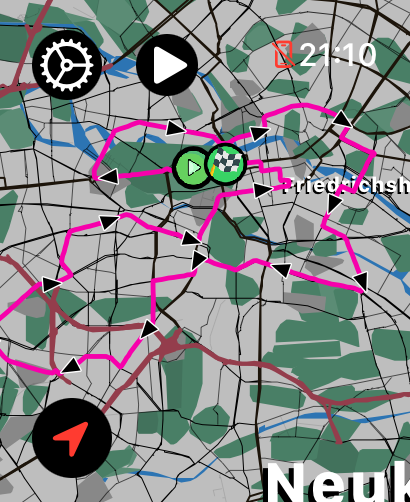
Display or Hide
Show the route over your map, or hide it without deleting it.

Delete
Remove a route you no longer need, then confirm the deletion. Hide it first if Delete is unavailable.
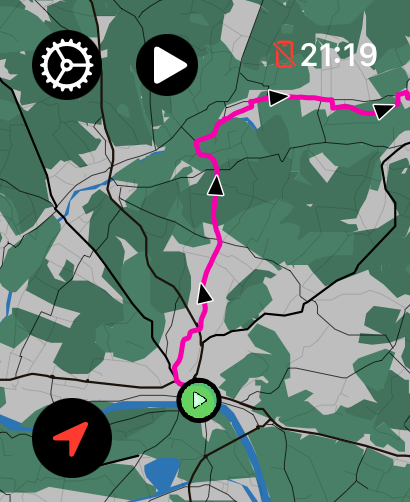
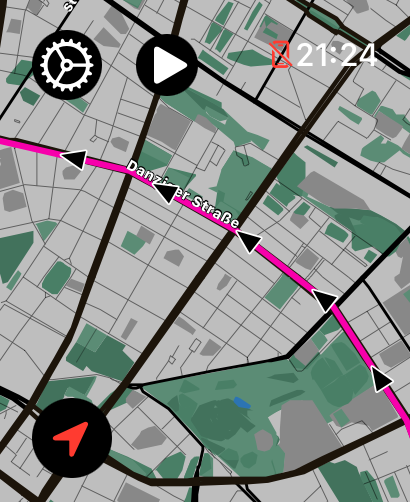
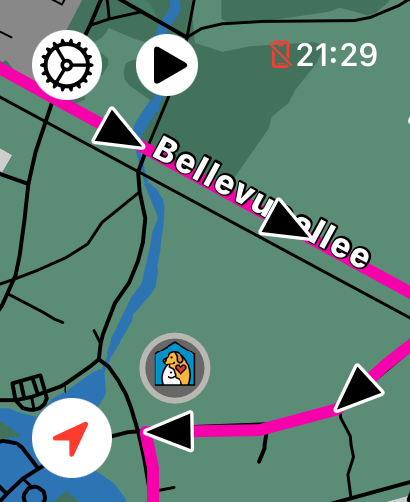
Can I follow a GPX route offline?
Yes. Download both the map and the GPX route to your Apple Watch before you leave, then display the route over the downloaded map.
When do I need an internet connection?
You need a connection to send and download the route. Once the route and map are downloaded, you can use them offline.
Where can I find a downloaded route?
Open Routes, then Imported routes. Routes are grouped by download month, so choose the relevant month and find the route by name.
Can I display more than one route at a time?
No. LilyMaps displays one route at a time. Displaying another route replaces the one currently shown.
Can I hide or delete a route?
Yes. Tap Hide to remove a displayed route from the map while keeping the file. Hide the route before deleting it from Imported routes.
What type of GPX file works?
Use a .gpx file containing a route or track.
Do I need an iPhone to send a GPX route?
No. You can open gpx.lilymaps.com on an iPhone, iPad, Mac, or another device, then enter the code shown on your Apple Watch.
Send once. Follow from your wrist.
For an offline trip, download the map you need before you leave, then import the route you want to follow.