Apple Watch activity guide
How to record a route on Apple Watch
Record a walk, run, hike, or ride with LilyMaps, pause when needed, and review the saved route on your Apple Watch.
LilyMaps lets you record an activity from start to finish. You can pause and resume as many times as you like, or simply keep recording until you are done.
This guide follows one complete example: start a recording, pause it, resume it, then stop and save it. You can skip or repeat the pause and resume parts to suit your activity.
Recording works directly on the watch without your iPhone or an internet connection. Downloaded map coverage is only needed if you want to see the map while offline.
Before you start
- Install LilyMaps on your Apple Watch.Install LilyMapsInstall LilyMaps BerlinMore information
- Set location access to Always for LilyMaps.
- Download the map before leaving if you want to see it while recording offline.
1 Open recording controls
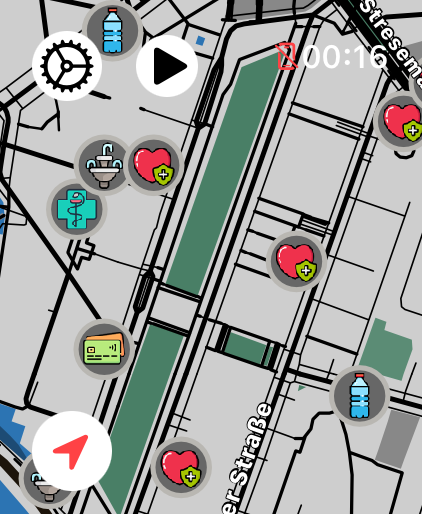
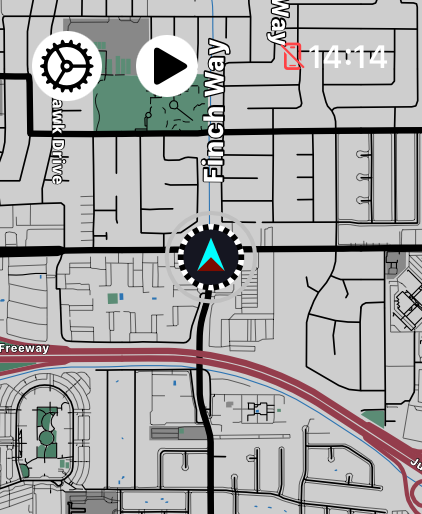
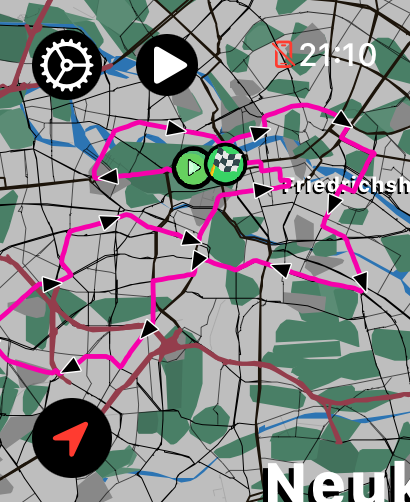
From the LilyMaps map, tap the round play button near the upper-left corner.
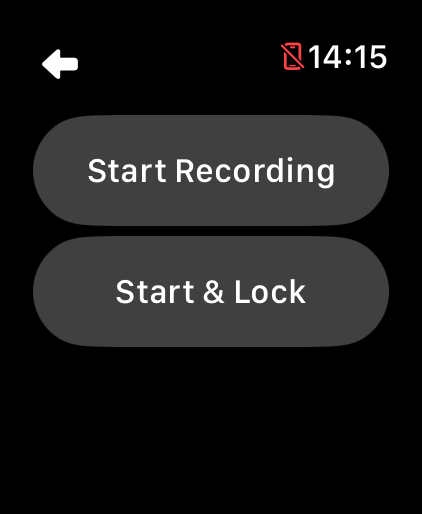
2 Start recording
Tap Start Recording.
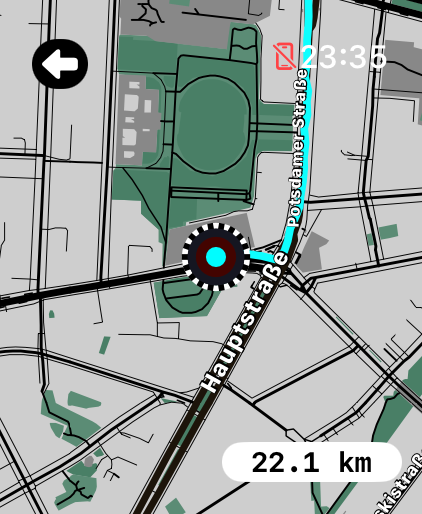
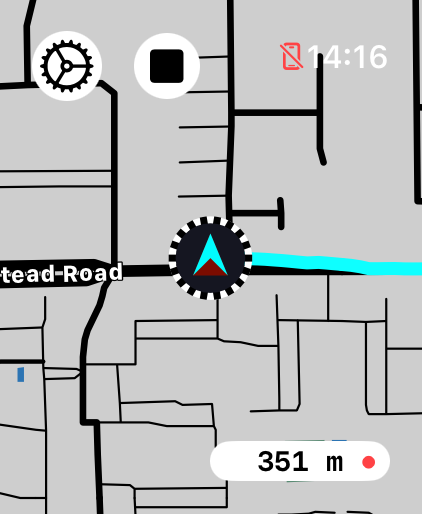
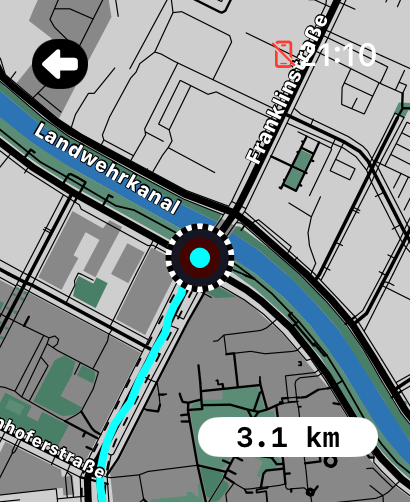
The map follows your position and draws the route as you move. Your live distance and a blinking red dot show that recording is active.
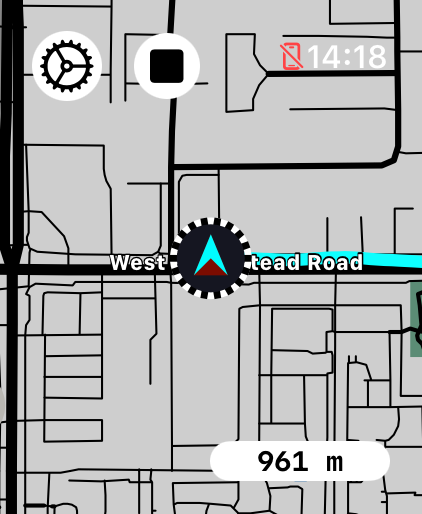
The square stop button is also the recording-menu button. Tapping it opens the controls; it does not end the activity by itself.
3 Open the recording menu
While recording, tap the round stop button near the upper-left corner.
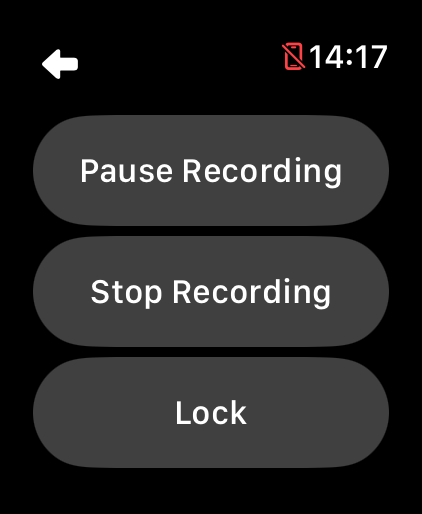
4 Pause the recording
Tap Pause Recording.
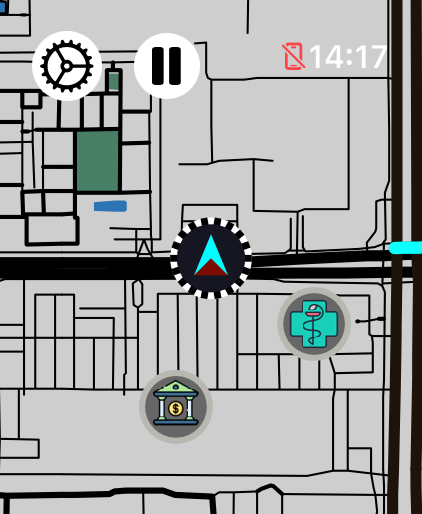
The activity stays open, but movement while paused is not added to the route. Use Pause for a rest, a long stop, or travel you do not want included.
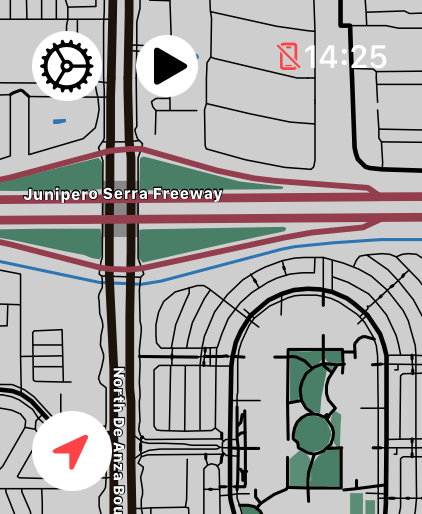
The activity button becomes a pause symbol. It now opens the paused controls; tapping it does not pause the activity a second time.
5 Open the paused menu
On the paused map, tap the round pause button near the upper-left corner.
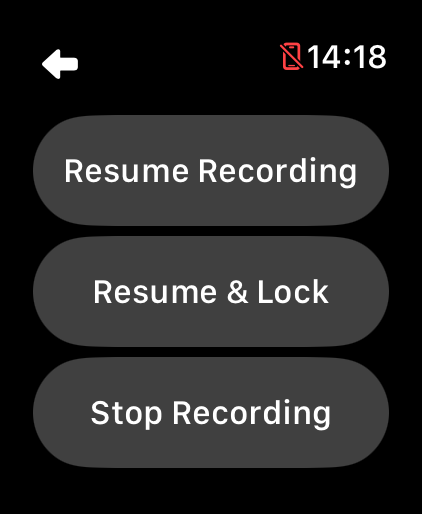
6 Resume the recording
Tap Resume Recording.
Stop Recording ends and saves the activity. There is no separate save step: LilyMaps prepares the route snapshot and opens the summary on your watch.
7 Open the recording menu again
When you are ready to finish, tap the round stop button near the upper-left corner.
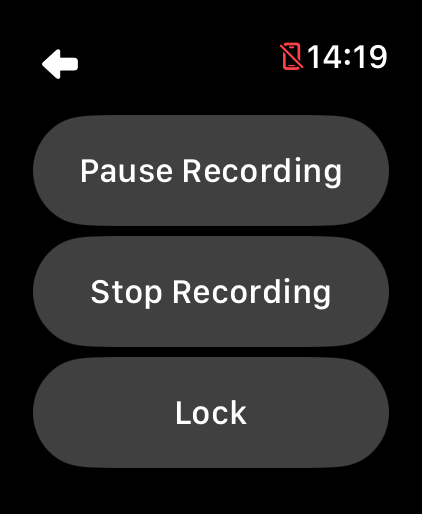
8 Save the recording
Tap Stop Recording.
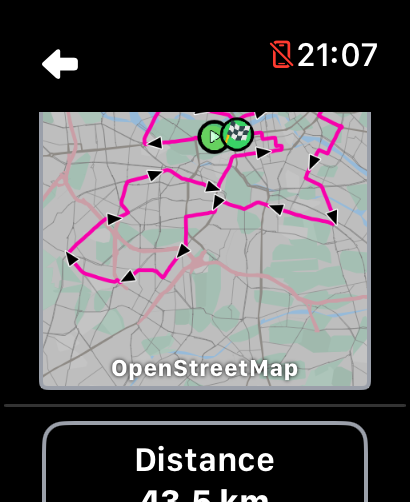
The summary opens after saving. Scroll through the route snapshot, distance, time, speed, and pace. The available figures depend on what was recorded.
The summary opens automatically when you stop. If you return another time, follow these steps to find the saved route again.
9 Open the LilyMaps menu
From the LilyMaps map, tap the gear icon in the upper-left corner.
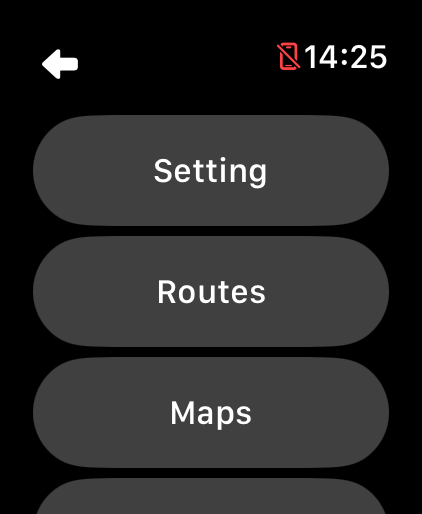
10 Open Routes
In the LilyMaps menu, tap Routes.
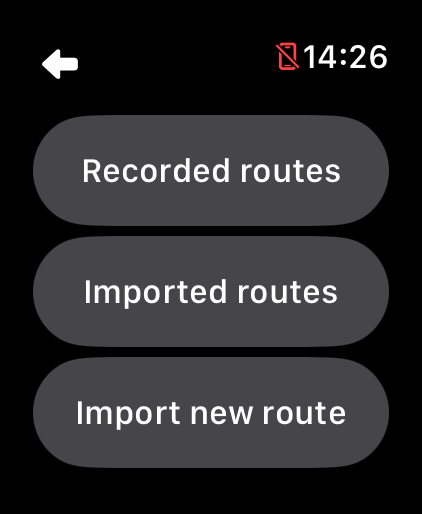
11 Open Recorded routes
Tap Recorded routes.
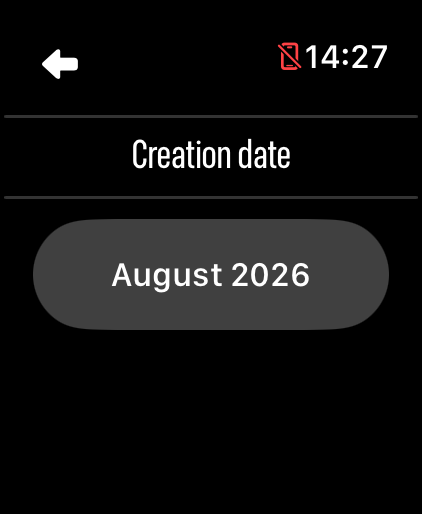
12 Choose the creation date
Tap the month and year that contains your recording.
13 Open a saved route
Tap your recording to open its route controls.
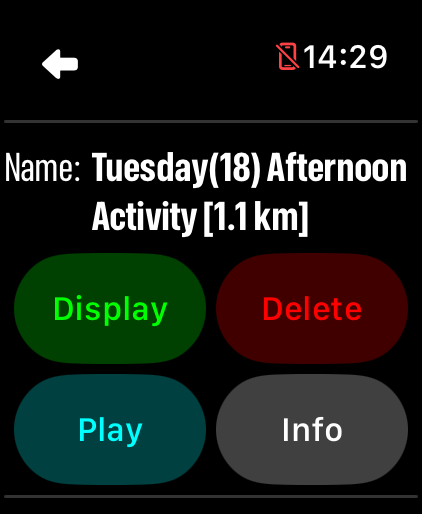
After choosing the month, find the activity by name. Its route card gives you these controls:
Info
Check the route summary and details after your activity.
Play
Replay the route to review its path and movement.
Display or Hide
Show the route over your map, or hide it without deleting it.
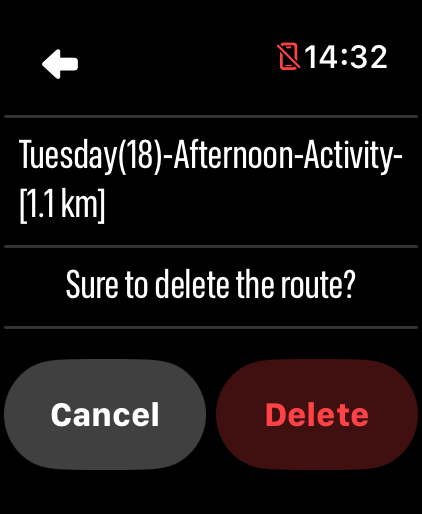
Delete
Remove a route you no longer need, then confirm the deletion. Hide it first if Delete is unavailable.
Use this quick reference after you understand the basic start, pause, and stop flow.
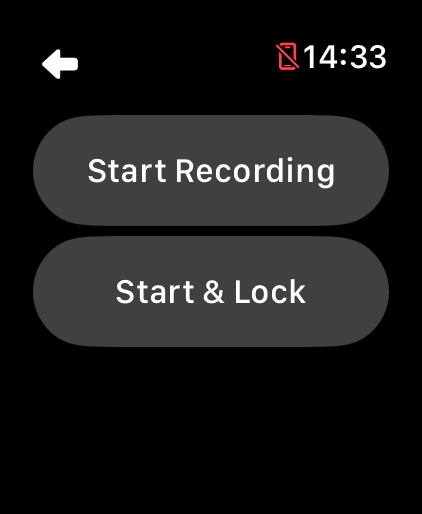
Before recording
Start Recording: begin with normal map controls.
Start & Lock: begin with the map centered on you, with panning and zooming disabled.
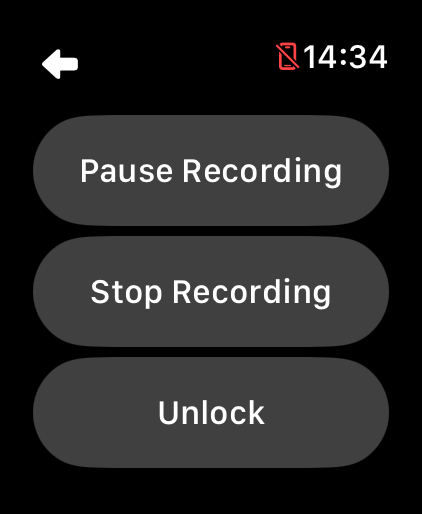
While recording
Pause Recording: stop adding movement without saving yet.
Stop Recording: finish and save.
Lock or Unlock: prevent or allow panning and zooming while the route keeps recording.
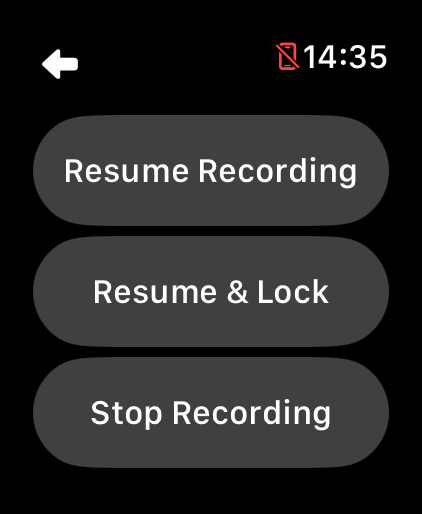
While paused
Resume Recording: continue with normal map controls.
Resume & Lock: continue with the map centered on you, with panning and zooming disabled.
Stop Recording: finish and save without resuming first.
Do I need my iPhone or an internet connection to record?
No. LilyMaps records with your Apple Watch location and saves the activity on the watch. Download the map before leaving if you also want map coverage offline.
Why did the recording menu close immediately?
LilyMaps needs location access set to Always. Open Settings on your Apple Watch or iPhone, change the LilyMaps location permission, then try again.
How do I know the recording is running?
The map shows a square stop button, your recorded distance, and a blinking red dot while the recording is active.
What do Lock and Unlock do?
Lock keeps the map centered on your position and prevents panning and zooming. Unlock lets you pan and zoom again. Neither option stops or changes the recording.
What happens when I pause?
The activity stays open, but movement while paused is not added to the route. Resume when you want to continue the same recording.
Can I finish while the recording is paused?
Yes. Open the paused menu and tap Stop Recording to save the activity without resuming it first.
Where can I find a saved recording?
Open the LilyMaps menu, choose Routes, then Recorded routes. Pick the creation month to find the saved activity.
What appears in the activity summary?
The summary can show a route snapshot, distance, duration, speed, and pace for the saved activity.
Record the route as your day unfolds.
Start from the map, pause when needed, and stop when you are ready to save and review.