Apple Watch outdoor guide
How to show outdoor landmarks on Apple Watch
Keep useful places such as water, toilets, shelters, and medical help visible on your LilyMaps map.

Outdoor Landmarks add simple symbols for useful places directly to your map. They can help you spot water on a long ride, find shelter on a hike, or see medical help nearby.
Choose the categories that fit your day and hide the ones you do not need. Your choices stay saved on the watch.
Before you start
- Install LilyMaps on your Apple Watch.Install LilyMapsInstall LilyMaps BerlinMore information
1 Open the LilyMaps menu
From the LilyMaps map, tap the gear icon in the upper-left corner.

2 Open Map features
In the LilyMaps menu, tap Map features.

3 Browse the landmark list
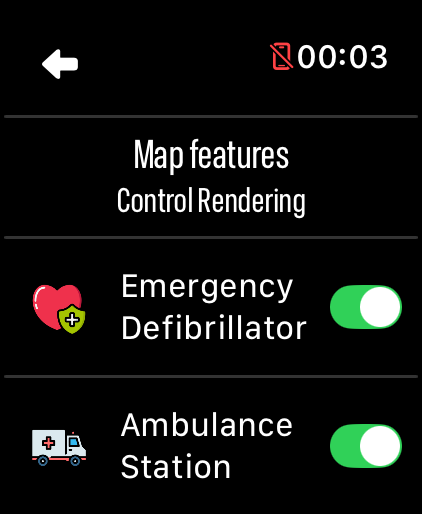
Swipe up to browse the available landmarks.
4 Choose a landmark
Tap the switch beside one landmark to show or hide it.
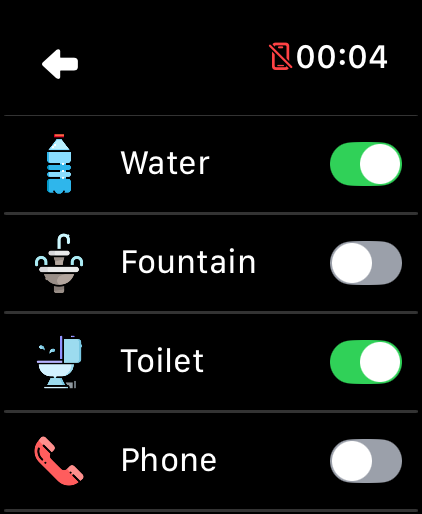

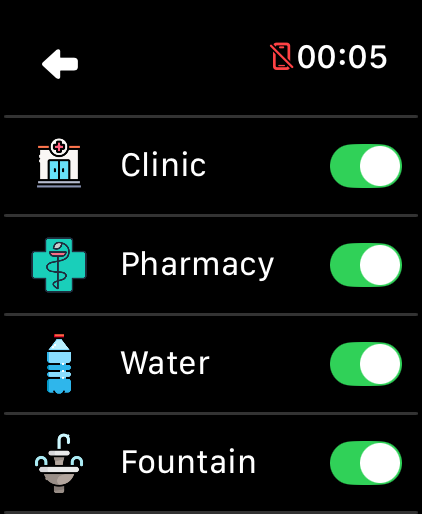
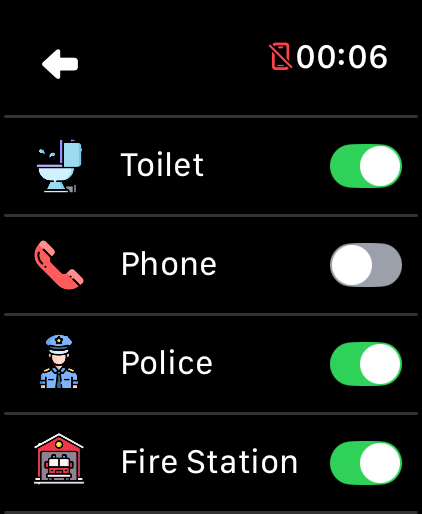
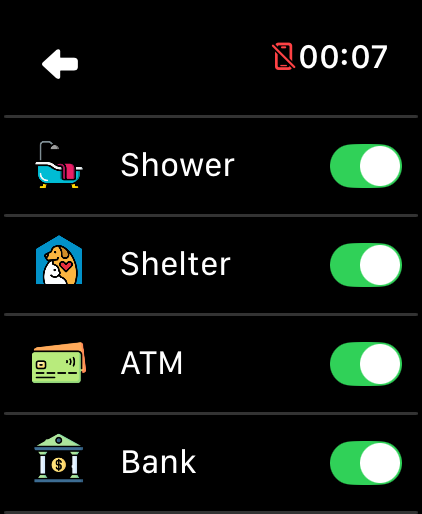



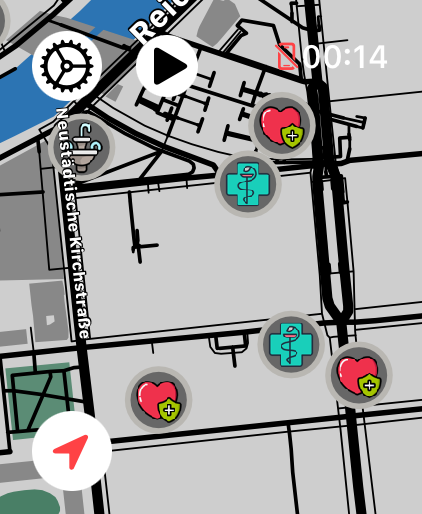
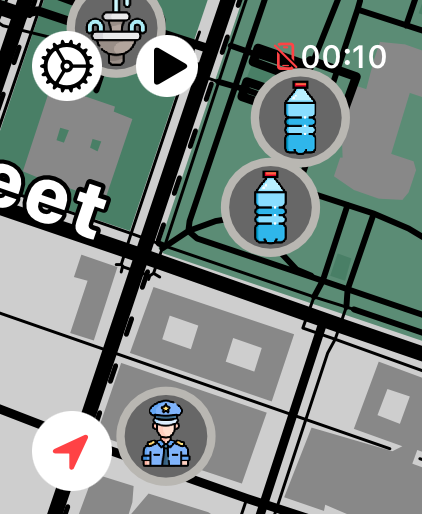
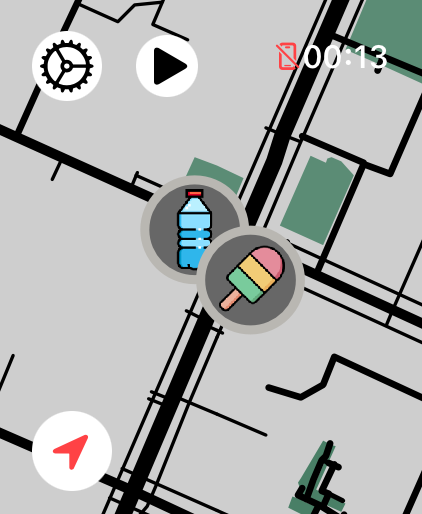
For a long ride or hike, start with Water, Toilet, and Shelter. In town, medical help, transport, and cash services may be more useful. Keep the map as simple or detailed as you like.
Which landmarks are most useful outdoors?
Water, fountains, toilets, shelters, and medical help are useful starting points. Keep the places that suit your ride, run, walk, or hike.
Are landmarks shown automatically?
Yes. The available landmark types start enabled. Turn off any categories you do not want on your map.
Will LilyMaps remember my choices?
Yes. Your landmark choices stay saved until you change them again.
Can I see landmarks offline?
Yes. Landmarks included in a map downloaded to your Apple Watch remain available without an internet connection.
Why might a landmark not appear?
Landmarks depend on the information available for that area. Use them as a helpful guide, especially when looking for emergency services.
Keep useful places close at hand.
Choose the landmarks that matter for your next ride, run, walk, or hike.