Apple Watch guide
How to show contour lines on Apple Watch
Show terrain height with clear contour lines or shaded contours on your LilyMaps map.
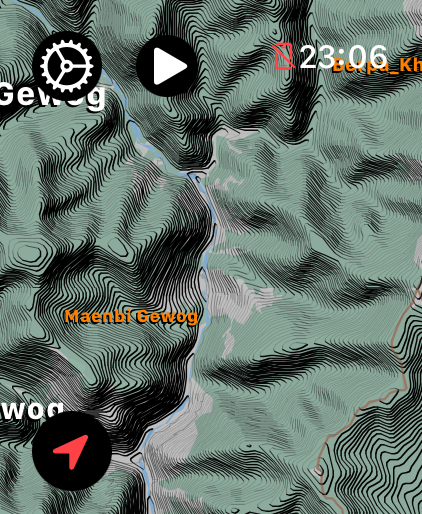
Contour lines follow land at the same height. Lines packed closely together usually show a steeper slope; wider spaces usually show gentler ground.
- Contour Lines: a clean line view with elevation labels. Choose it when you want terrain detail without extra shading.
- Shaded Contour Lines: adds light-and-dark shading around the lines. Choose it when the shading helps you see the shape of the terrain.
Before you start
- Install LilyMaps on your Apple Watch.Install LilyMapsInstall LilyMaps BerlinMore information
1 Open the LilyMaps menu
From the LilyMaps map, tap the gear icon in the upper-left corner.
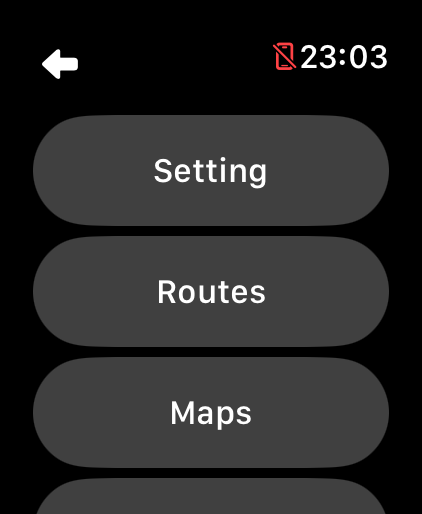
2 Open Setting
In the LilyMaps menu, tap Setting.
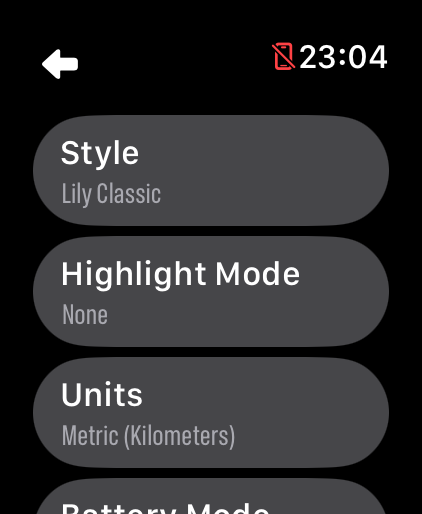
3 Open Highlight Mode
In Setting, tap Highlight Mode.
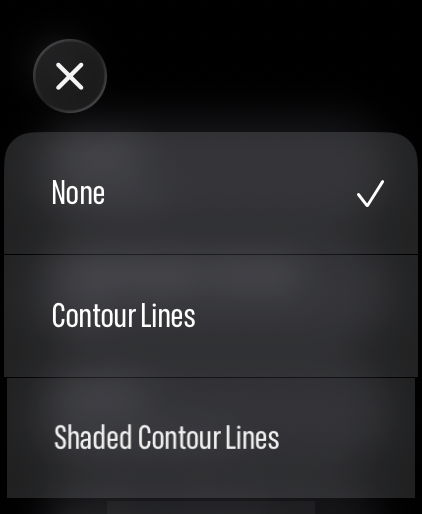
4 Choose a contour view
Tap Contour Lines for a clean line view, or Shaded Contour Lines for added terrain shading.
The clean view shows elevation lines and labels without extra terrain shading.
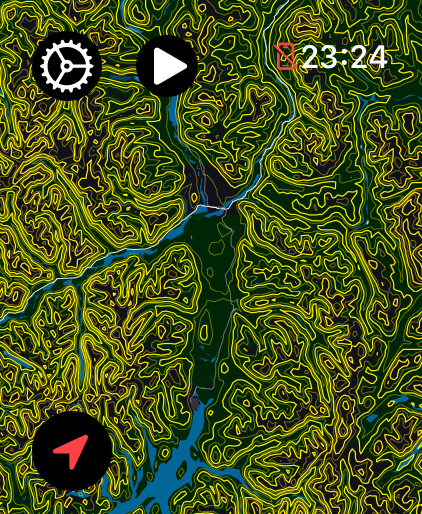
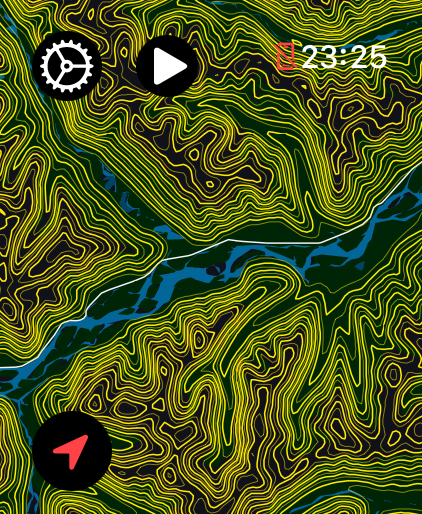
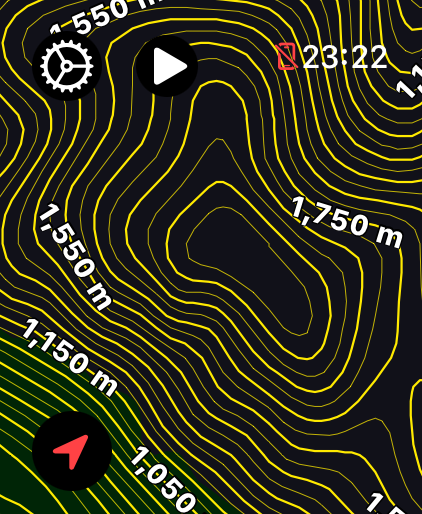
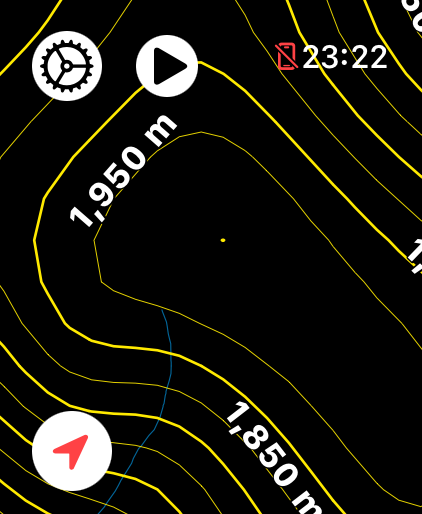
The shaded view adds light-and-dark terrain detail to help the shape of the land stand out.
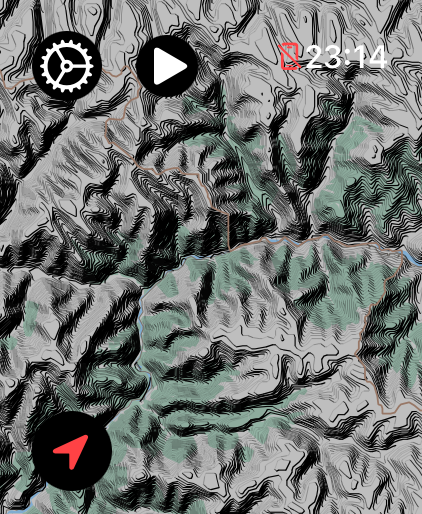
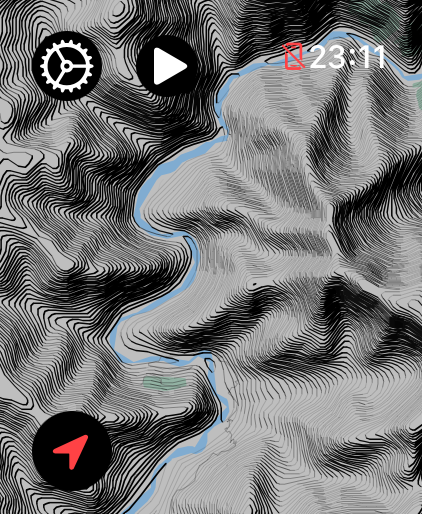
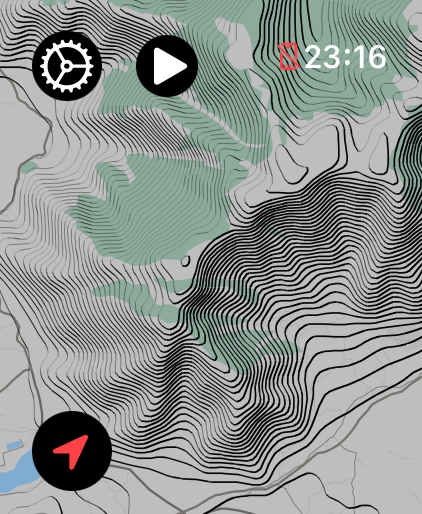
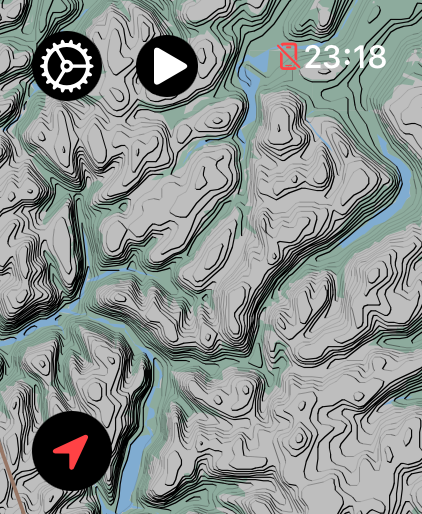
Your choice is saved for the next time you open LilyMaps. To hide the contour view, return to Highlight Mode and choose None.
What do contour lines show?
Each line follows land at the same height. Lines close together usually mean a steeper slope; wider spaces usually mean gentler ground.
Which contour view should I choose?
Choose Contour Lines for a simple line view. Choose Shaded Contour Lines when light-and-dark terrain shading helps you see the shape of the land.
Why do I see few or no contour lines?
Very flat places may have few useful contour lines. Contour detail also depends on what is available for that map.
Are contour heights shown in meters or feet?
Contour labels follow your LilyMaps Units choice. Metric shows meters, while Imperial shows feet.
Can I turn contour lines off?
Yes. Return to Highlight Mode and choose None, or choose another highlight option.
Choose the view that makes the land clearer.
Use clean contour lines for simple detail, or shaded contours when terrain shape matters most.